 CARLOS DIEGO C. P.
Windows Authentication with Amazon RDS for SQL Server · Part 3 of 3
Using Windows Authentication with an Amazon RDS for SQL Server DB Instance (Part 3/3)
In this post, we will talk about how to set up Windows Authentication for SQL Server DB instances.
In this post, we will talk about how to set up Windows Authentication for SQL Server DB instances.

This post was supported and reviewed by the Valcann team (www.valcann.com.br).

AWS Directory Service for Microsoft Active Directory
We will continue configuring AWS Directory Service for Microsoft Active Directory, also called AWS Managed Microsoft AD, to set up Windows Authentication for a SQL Server DB instance. To set up Windows Authentication, perform the following steps.
Step 5: Create or modify a SQL Server DB instance
Create or modify a SQL Server DB instance for use with your directory. You can use the console, the CLI or the RDS API to associate a DB instance with a directory. You can do this in one of the following ways:
- Create a new SQL Server DB instance using the console, the create-db-instance CLI command or the CreateDBInstance RDS API operation.
- Modify an existing SQL Server DB instance using the console, the modify-db-instance CLI command or the ModifyDBInstance RDS API operation.
- Restore a SQL Server DB instance from a DB snapshot using the console, the restore-db-instance-from-db-snapshot CLI command or the RestoreDBInstanceFromDBSnapshot RDS API operation.
- Restore a SQL Server DB instance to a point in time using the console, the restore-db-instance-to-point-in-time CLI command or the RestoreDBInstanceToPointInTime RDS API operation.
Windows Authentication is only supported for SQL Server DB instances in a VPC.
For the DB instance to be able to use the domain directory that you created, the following is required:
- For Directory , you must choose the domain identifier ( ) generated when you created the directory. d-ID
- Make sure that the VPC security group has an outbound rule that lets the DB instance communicate with the directory.
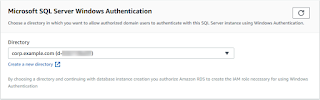
When you use the AWS CLI, the following parameters are required for the DB instance to be able to use the directory that you created:
- For the — domain parameter, use the domain identifier ( ) generated when you created the directory. d-ID
- For the — domain-iam-role-name parameter, use the role you created that uses the AmazonRDSDirectoryServiceAccess managed IAM policy.
For example, the following CLI command modifies a DB instance to use a directory.
For Linux, macOS or Unix:
aws rds modify-db-instance \
 — db-instance-identifier mydbinstance \
 — domain d-ID \
 — domain-iam-role-name role-name
For Windows:
aws rds modify-db-instance ^
 — db-instance-identifier mydbinstance ^
 — domain d-ID ^
 — domain-iam-role-name role-name
Step 6: Create Windows Authentication SQL Server logins
Use the Amazon RDS master user credentials to connect to the SQL Server DB instance as you would with any other DB instance. Because the DB instance is joined to the AWS Managed Microsoft AD domain, you can provision SQL Server logins and users. You do this from the Active Directory users and groups in your domain. Database permissions are managed through standard SQL Server permissions granted to and revoked from these Windows logins.
For an Active Directory user to authenticate with SQL Server, a SQL Server Windows login must exist for the user or for a group that the user is a member of. Fine-grained access control is handled by granting and revoking permissions on these SQL Server logins. A user that doesn’t have a SQL Server login, or doesn’t belong to a group with such a login, can’t access the SQL Server DB instance.
The ALTER ANY LOGIN permission is required to create an Active Directory SQL Server login. If you haven’t created any logins with this permission, connect as the DB instance’s master user using SQL Server Authentication.
Run a data definition language (DDL) command such as the following example to create a SQL Server login for an Active Directory user or group.
USE [master]GOCREATE LOGIN [mydomain\myuser] FROM WINDOWS WITH DEFAULT_DATABASE = [master], DEFAULT_LANGUAGE = [us_english];GOUsers (both people and applications) from your domain can now connect to the RDS for SQL Server instance from a domain-joined client machine using Windows Authentication.
Managing a DB instance in a domain
You can use the console, the AWS CLI or the Amazon RDS API to manage your DB instance and its relationship with your domain. For example, you can move the DB instance into, out of or between domains.
For example, using the Amazon RDS API, you can do the following:
- To retry a domain join for a failed membership, use the ModifyDBInstance API operation and specify the current membership’s directory ID.
- To update the IAM role name for membership, use the ModifyDBInstance API operation and specify the current membership’s directory ID and the new IAM role.
- To remove a DB instance from a domain, use the ModifyDBInstance API operation and specify none as the domain parameter.
- To move a DB instance from one domain to another, use the ModifyDBInstance API operation and specify the domain identifier of the new domain as the domain parameter.
- To list the membership for each DB instance, use the DescribeDBInstances API operation.
Understanding domain membership
After you create or modify your DB instance, the instance becomes a member of the domain. The AWS console indicates the status of the domain membership for the DB instance. The status of the DB instance can be one of the following:
- joined — The instance is a member of the domain.
- joining — The instance is in the process of becoming a member of the domain.
- pending-join — The instance membership is pending.
- pending-maintenance-join — AWS will attempt to make the instance a member of the domain during the next scheduled maintenance window.
- pending-removal — The removal of the instance from the domain is pending.
- pending-maintenance-removal — AWS will attempt to remove the instance from the domain during the next scheduled maintenance window.
- failed — A configuration problem has prevented the instance from joining the domain. Check and fix your configuration before reissuing the instance modify command.
- removing — The instance is being removed from the domain.
A request to become a member of a domain can fail because of a network connectivity issue or an incorrect IAM role. For example, you might create a DB instance or modify an existing instance and have the attempt fail for the DB instance to become a member of a domain. In this case, either reissue the command to create or modify the DB instance or modify the newly created instance to join the domain.
Connecting to SQL Server with Windows Authentication
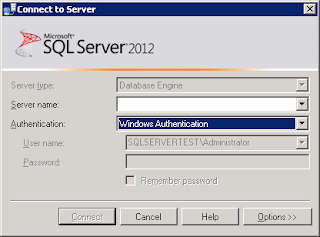
To connect to SQL Server with Windows Authentication, you must be logged in to a domain-joined computer as a domain user. After launching SQL Server Management Studio, choose Windows Authentication as the authentication type, as shown below.
If you have any questions or run into any problems with this tutorial, feel free to get in touch.
See you in the next post! =)
Comments
Every comment is moderated before it appears here. Nothing is published automatically.
Loading…