 CARLOS DIEGO C. P.
Technical Post · Amazon Aurora
Implementing database autoscaling with Amazon Aurora
In this post, we'll talk about how to implement autoscaling in the database layer with Amazon Aurora.
Keywords
In this post, we'll talk about how to implement autoscaling in the database layer with Amazon Aurora.

Prerequisites
Before you can use Aurora Auto Scaling with an Aurora DB cluster, you must first create an Aurora DB cluster with a primary instance and at least one Aurora Replica. Although Aurora Auto Scaling manages the Aurora Replicas, the Aurora DB cluster must start with at least one Aurora Replica.
Aurora Auto Scaling only scales a DB cluster if all Aurora Replicas in the DB cluster are in the available state. If any Aurora Replica is in a state other than available, Aurora Auto Scaling waits until the whole DB cluster becomes available for scaling.
When Aurora Auto Scaling adds a new Aurora Replica, the new Aurora Replica uses the same DB instance class as the primary instance. In addition, the promotion tier for new Aurora Replicas is set to the lowest priority, which is 15 by default. This means that during a failover, a replica with a better priority, such as one created manually, would be promoted first.
Aurora Auto Scaling only removes the Aurora Replicas that it created.
To benefit from Aurora Auto Scaling, your applications must support connections to new Aurora Replicas. To do this, we recommend using the Aurora reader endpoint. For Aurora MySQL, you can use a driver such as the MariaDB Connector/J utility.
Aurora Auto Scaling policies
Aurora Auto Scaling uses a scaling policy to adjust the number of Aurora Replicas in an Aurora DB cluster. Aurora Auto Scaling has the following components:
Service-linked role
Aurora Auto Scaling uses the AWSServiceRoleForApplicationAutoScaling_RDSCluster service-linked role.
Target metric
In this type of policy, a predefined or custom metric and a target value for the metric are specified in a target tracking scaling policy configuration. Aurora Auto Scaling creates and manages CloudWatch alarms that trigger the scaling policy and calculates the scaling adjustment based on the metric and the target value. The scaling policy adds or removes Aurora Replicas as needed to keep the metric at, or close to, the specified target value. In addition to keeping the metric close to the target value, a target tracking scaling policy also adjusts to fluctuations in the metric caused by a changing workload. This policy also minimizes rapid fluctuations in the number of Aurora Replicas available to your DB cluster.
For example, consider a scaling policy that uses the predefined average CPU utilization metric. Such a policy can keep CPU utilization at, or close to, a specified percentage of utilization, such as 40 percent.
Minimum and maximum capacity
You can specify the maximum number of Aurora Replicas to be managed by Application Auto Scaling. This value must be set to 0–15 and must be equal to or greater than the value specified for the minimum number of Aurora Replicas.
You can also specify the minimum number of Aurora Replicas to be managed by Application Auto Scaling. This value must be set to 0–15 and must be equal to or less than the value specified for the maximum number of Aurora Replicas.
Cooldown period
You can tune the responsiveness of a target tracking scaling policy by adding cooldown periods that affect the scaling of your Aurora DB cluster. A cooldown period blocks subsequent scale-in or scale-out requests until the period expires. These blocks slow down the deletion of Aurora Replicas in your Aurora DB cluster for scale-in requests, and the creation of Aurora Replicas for scale-out requests.
Adding a scaling policy in Amazon Aurora
- Sign in to the AWS Management Console and open the Amazon RDS console at https://console.aws.amazon.com/rds/.
- In the navigation pane, choose Databases.
- Choose the Aurora DB cluster you want to add a policy to.
- Choose the Logs & events tab.
- In the Auto scaling policies section, choose Add.
- The Add Auto Scaling policy dialog box appears.
- For Policy name, type the policy name.
- For the target metric, choose one of the following:
- Average CPU utilization of Aurora Replicas, to create a policy based on average CPU utilization.
- Average connections of Aurora Replicas, to create a policy based on the average number of connections to Aurora Replicas.
- For the target value, type one of the following:
- If you chose Average CPU utilization of Aurora Replicas in the previous step, type the percentage of CPU utilization you want to maintain on the Aurora Replicas.
- If you chose Average connections of Aurora Replicas in the previous step, type the number of connections you want to maintain.
- Aurora Replicas are added or removed to keep the metric close to the specified value.
- (Optional) Open Additional configuration to create a scale-in or scale-out cooldown period.
- For Minimum capacity, type the minimum number of Aurora Replicas that the Aurora Auto Scaling policy must maintain.
- For Maximum capacity, type the maximum number of Aurora Replicas that the Aurora Auto Scaling policy must maintain.
- Choose Add policy.
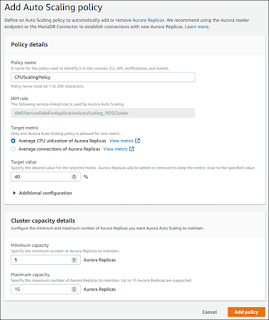
The following dialog box creates an Auto Scaling policy based on an average CPU utilization of 40 percent. The policy specifies a minimum of 5 Aurora Replicas and a maximum of 15 Aurora Replicas.
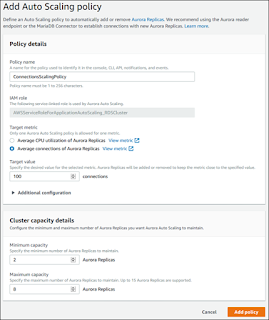
The following dialog box creates an auto scaling policy based on an average number of connections of 100. The policy specifies a minimum of two Aurora Replicas and a maximum of eight Aurora Replicas.
Adding an Amazon Aurora scaling policy using the AWS CLI
You can apply a scaling policy based on a predefined or custom metric. To do so, you can use the AWS CLI or the Application Auto Scaling API. The first step is to register your Aurora DB cluster with Application Auto Scaling.
Registering an Aurora DB cluster
Before you use Aurora Auto Scaling with an Aurora DB cluster, register your Aurora DB cluster with Application Auto Scaling. You do this to define the scaling dimension and the limits to be applied to that cluster. Application Auto Scaling dynamically scales the Aurora DB cluster along the rds:cluster:ReadReplicaCount scalable dimension, which represents the number of Aurora Replicas.
To register your Aurora DB cluster, you can use the AWS CLI or the Application Auto Scaling API.
AWS CLI
To register your Aurora DB cluster, use the register-scalable-target AWS CLI command with the following parameters:
- — service-namespace — Set this value to rds.
- — resource-id — The resource identifier for the Aurora DB cluster. For this parameter, the resource type is cluster and the unique identifier is the name of the Aurora DB cluster, for example cluster:myscalablecluster.
- — scalable-dimension — Set this value to rds:cluster:ReadReplicaCount.
- — min-capacity — The minimum number of reader DB instances to be managed by Application Auto Scaling. For information about the relationship between — min-capacity, — max-capacity, and the number of DB instances in your cluster, see Minimum and maximum capacity .
- — max-capacity — The maximum number of reader DB instances to be managed by Application Auto Scaling. For information about the relationship between — min-capacity, — max-capacity, and the number of DB instances in your cluster, see Minimum and maximum capacity .
In the following example, you register an Aurora DB cluster named myscalablecluster. The registration indicates that the DB cluster should be dynamically scaled to have from one to eight Aurora Replicas.
For Linux, macOS, or Unix:
aws application-autoscaling register-scalable-target \ — service-namespace rds \ — resource-id cluster:myscalablecluster \ — scalable-dimension rds:cluster:ReadReplicaCount \ — min-capacity 1 \ — max-capacity 8 \For Windows:
aws application-autoscaling register-scalable-target ^ — service-namespace rds ^ — resource-id cluster:myscalablecluster ^ — scalable-dimension rds:cluster:ReadReplicaCount ^ — min-capacity 1 ^ — max-capacity 8 ^Adding an Amazon Aurora scaling policy using the Application Scaling API
You can apply a scaling policy based on a predefined or custom metric. To do so, you can use the AWS CLI or the Application Auto Scaling API. The first step is to register your Aurora DB cluster with Application Auto Scaling.
Registering an Aurora DB cluster
Before you use Aurora Auto Scaling with an Aurora DB cluster, register your Aurora DB cluster with Application Auto Scaling. You do this to define the scaling dimension and the limits to be applied to that cluster. Application Auto Scaling dynamically scales the Aurora DB cluster along the rds:cluster:ReadReplicaCount scalable dimension, which represents the number of Aurora Replicas.
To register your Aurora DB cluster, you can use the AWS CLI or the Application Auto Scaling API.
Application Scaling API
To register your Aurora DB cluster with Application Auto Scaling, use the RegisterScalableTarget operation of the Application Auto Scaling API with the following parameters:
- ServiceNamespace — Set this value to rds.
- ResourceID — The resource identifier for the Aurora DB cluster. For this parameter, the resource type is cluster and the unique identifier is the name of the Aurora DB cluster, for example cluster:myscalablecluster.
- ScalableDimension — Set this value to rds:cluster:ReadReplicaCount.
- MinCapacity — The minimum number of reader DB instances to be managed by Application Auto Scaling. For information about the relationship between MinCapacity, MaxCapacity, and the number of DB instances in your cluster, see Minimum and maximum capacity .
- MaxCapacity — The maximum number of reader DB instances to be managed by Application Auto Scaling. For information about the relationship between MinCapacity, MaxCapacity, and the number of DB instances in your cluster, see Minimum and maximum capacity.
Example
In the following example, you register an Aurora DB cluster named myscalablecluster with the Application Auto Scaling API. This registration indicates that the DB cluster should be dynamically scaled to have from one to eight Aurora Replicas.
POST / HTTP/1.1
Host: autoscaling.us-east-2.amazonaws.com
Accept-Encoding: identity
Content-Length: 219
X-Amz-Target: AnyScaleFrontendService.RegisterScalableTarget
X-Amz-Date: 20160506T182145Z
User-Agent: aws-cli/1.10.23 Python/2.7.11 Darwin/15.4.0 botocore/1.4.8
Content-Type: application/x-amz-json-1.1
Authorization: AUTHPARAMS
{
  “ServiceNamespace”: “rds”,
  “ResourceId”: “cluster:myscalablecluster”,
  “ScalableDimension”: “rds:cluster:ReadReplicaCount”,
  “MinCapacity”: 1,
  “MaxCapacity”: 8
}
See you in the next post! =)
Comments
Every comment is moderated before it appears here. Nothing is published automatically.
Loading…