 CARLOS DIEGO C. P.
Technical Post · Amazon Web Services
Implementing Automated Alerts in the AWS Health Dashboard
The AWS Health Dashboard is an Amazon Web Services (AWS) service that provides real-time information about the operational status of…
Keywords
The AWS Health Dashboard is an Amazon Web Services (AWS) service that provides real-time information about the operational status of AWS services. It offers a consolidated view of the status of every service in every Region, letting users monitor and understand the impact of events on their AWS environment.
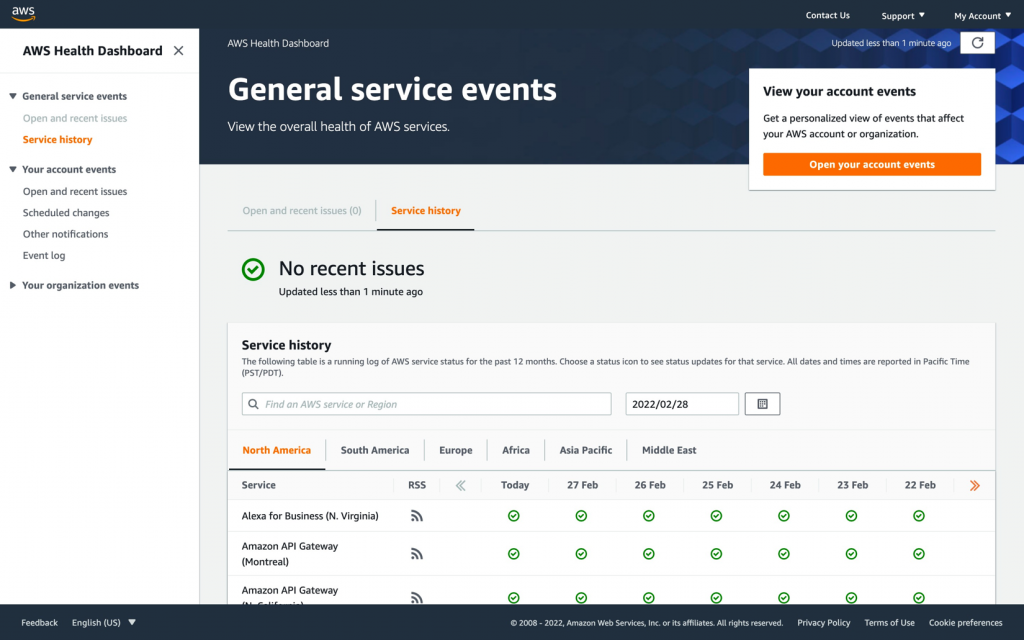
The AWS Health Dashboard notifies users about events and issues that may affect their operations on AWS. These events fall into three main categories:
- Service Status Information (Service Status): These notifications report service outages, performance degradation or any other changes in the operational status of AWS services. This information helps users understand whether a specific service is having problems and how far the impact extends.
- Maintenance Announcements (Scheduled Maintenance): This type of notification reports planned maintenance on AWS services. AWS performs maintenance regularly to ensure the reliability and security of its services. Users are notified in advance so they can prepare and minimize any impact on their operations.
- Emergency Event Announcements (Emergency Events): These notifications alert you to emergency events that may affect the availability of AWS services. Such events can include unplanned incidents, such as critical infrastructure failures or other problems that need immediate attention.
Why the AWS Health Dashboard Matters
The AWS Health Dashboard is a crucial tool for ensuring the reliability and resilience of cloud operations. Its importance lies in:
- Global Visibility: It provides a consolidated view of the status of all AWS services and Regions in a single dashboard, letting users quickly spot potential problems.
- Informed Decision-Making: By receiving real-time notifications about events, users can make informed decisions about how to handle service outages, plan for scheduled maintenance and respond to emergency events.
- Faster Response Times: It enables a faster response to problems, minimizing downtime and mitigating adverse business impact.
- Transparency and Communication: It promotes transparency by providing proactive information about events and regular updates. This helps build trust between users and AWS.
In short, the AWS Health Dashboard plays a vital role in running cloud services securely and efficiently, giving users visibility into and notifications about events that may affect their operations on AWS.
Tutorial: Implementing an Email Notification Alert for AWS Health Dashboard Events
Prerequisites:
- An active AWS account.
- Access to the AWS Console, or the AWS CLI installed.
- Terraform and/or the AWS CLI installed, if you choose to use CloudFormation and Terraform.
Step 1: Set Up the Environment
Before you start, make sure your AWS credentials are configured in the environment you'll be working in.
Step 2: Choose the Approach (Terraform or CloudFormation)
Choose between Terraform and CloudFormation. Both approaches offer efficient ways to provision resources on AWS, and you can pick the one that best fits your needs.
Using Terraform:
Step 3: Write the Terraform Code
Create a file named main.tf and add the following code:
provider “aws” {
 region = “us-east-1” # Substitua pela sua região desejada
}

resource “aws_sns_topic” “health_alert_topic” {
 name = “health_alert_topic”
}

resource “aws_cloudwatch_event_rule” “health_event_rule” {
 name = “health_event_rule”
 event_pattern = <<EOF
{
 “source”: [“aws.health”],
 “detail-type”: [“AWS Health Event Notification”],
 “resources”: [“*”]
}
EOF
}

resource “aws_cloudwatch_event_target” “health_event_target” {
 rule = aws_cloudwatch_event_rule.health_event_rule.name
 arn = aws_sns_topic.health_alert_topic.arn
}
Step 4: Initialize and Apply Terraform
Run the following commands in the directory where the main.tf file is located:
terraform init
terraform apply
Using CloudFormation:
Step 3: Write the CloudFormation Template
Create a file named health_alert_template.yaml and add the following code:
AWSTemplateFormatVersion: '2010-09-09'
Resources:
  HealthAlertTopic:
    Type: AWS::SNS::Topic
    Properties:
      DisplayName: HealthAlertTopic

  HealthEventRule:
    Type: AWS::Events::Rule
    Properties:
      Name: HealthEventRule
      EventPattern:
        source:
          - aws.health
        detail-type:
          - AWS Health Event Notification
        resources:
          - "*"

  HealthEventTarget:
    Type: AWS::Events::Target
    Properties:
      Rule: !Ref HealthEventRule
      Targets:
        - Arn: !Ref HealthAlertTopic
          Id: HealthAlertTarget
Step 4: Deploy the CloudFormation Template
Run the following command in the terminal:
aws cloudformation create-stack --stack-name health-alert-stack --template-body file://health_alert_template.yamlStep 5: Set Up Email Notifications
- Open the SNS Console.
- Select the topic you created (
health_alert_topic). - On the “Subscriptions” tab, click “Create Subscription”.
- Choose the “Email” protocol and enter the email address that should receive notifications.
You've now successfully set up an email notification alert for AWS Health Dashboard events. Be sure to keep an eye on the email address you specified so you receive the notifications when events occur.
Comments
Every comment is moderated before it appears here. Nothing is published automatically.
Loading…