 CARLOS DIEGO C. P.
Technical Post
How to encrypt and decrypt your data with the AWS Encryption CLI
In this post, we'll implement a file encryption and decryption process using the Encryption CLI and Amazon KMS keys.
In this post, we'll implement a file encryption and decryption process using the Encryption CLI and Amazon KMS keys.
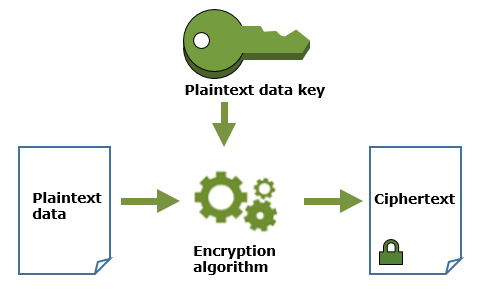
Encrypt the file
We'll use the AWS Encryption CLI to encrypt a file named secret.txt in your current directory. We'll write the encrypted output file to the same directory. This secret.txt file contains a Hello World string, but it could just as well contain relevant data from your business.
$ ls
secret.txt
$ cat secret.txt
Hello World
When encrypting data, you'll need to specify a master key. This example uses an AWS KMS CMK, but you can use a master key from any master key provider that is compatible with the AWS Encryption SDK. The AWS Encryption CLI uses the master key to generate a unique data key for each file it encrypts.
If you use an AWS KMS CMK as your master key, you'll need to install and configure the AWS Command Line Interface (AWS CLI) so that the credentials used to authenticate to AWS KMS are available to the AWS Encryption CLI. Those credentials must grant permission to call the AWS KMS GenerateDataKey and Decrypt APIs on the CMK.
The first line of this example saves an AWS KMS CMK ID in the $keyID variable. The second line encrypts the data in the secret.txt file. (The backslash, “\”, is the line continuation character in Linux shells.)
To run the following command, replace the placeholder value in the command with a valid CMK identifier.
$ keyID = “111122223333”$ aws-encryption-cli — encrypt — input secret.txt \
— master-keys key=$keyID \
— encryption-context purpose=test \
— metadata-output ~/metadata \
— output .This command uses the — encrypt (-e) parameter to specify the encryption action and the — master-keys(-m) parameter with a key attribute to specify an AWS KMS CMK. If you're not using an AWS KMS CMK, you'll need to include a provider attribute that identifies the master key provider.
The command uses the — encryption-context (-c) parameter to specify an encryption context, purpose=test, for the operation. The encryption context is non-secret data that is cryptographically bound to the encrypted data and included in plaintext in the encrypted message the CLI returns. Providing additional authenticated data, such as an encryption context, is a recommended practice.
The — metadata-output parameter tells the AWS Encryption CLI where to write the metadata for the encrypt command. The metadata includes the full paths to the input and output files, the encryption context, the algorithm suite, and other valuable information you can use to review the operation and verify that it meets your security standards.
The — input(-i) and — output(-o) parameters are required in every AWS Encryption CLI command. In this example, the input file is the secret.txt file. The output location is the current directory, which is represented by a dot (“.”).
When the — encrypt command succeeds, it creates a new file containing the encrypted data but returns no output. To see the command's results, use a directory listing command such as ls or dir. Running an ls command in this example shows that the AWS Encryption CLI generated the secret.txt.encrypted file.
$ lssecret.txt secret.txt.encryptedBy default, the output file that the — encrypt command creates has the same name as the input file, plus a .encrypted suffix. You can use the — suffix parameter to specify a custom suffix.
The secret.txt.encrypted file contains a single, portable, secure encrypted message. The encrypted message includes the encrypted data, an encrypted copy of the data key that encrypted the data, and metadata, including the plaintext encryption context I provided.
You can manage an encrypted file any way you like, including copying it to an Amazon S3 bucket or archiving it for later use.
Decrypt a file
Now let's use the AWS Encryption CLI to decrypt the secret.txt.encrypted file. If you have the required permissions on your master key, you can use any version of the AWS Encryption SDK to decrypt a file that the AWS Encryption CLI encrypted, including the AWS Encryption SDK libraries in Java and Python.
However, you can't use other tools, such as the Amazon S3 encryption client or the Amazon DynamoDB encryption client, to decrypt the encrypted message, because they use an incompatible encrypted message format.
The following command decrypts the contents of the secret.txt.encrypted file.
$ aws-encryption-cli — decrypt — input secret.txt.encrypted \
        — encryption-context purpose=test \
        — metadata-output ~/metadata \
        — output .
The — decrypt command requires an encrypted message, such as the one the — encrypt command returned, plus the — input and — output parameters.
This command has no — master-keys parameter. A — master-keys parameter is only required if you're not using an AWS KMS CMK.
In this example command, the — input parameter specifies the secret.txt.encrypted file. The — output parameter specifies the current directory, which is again represented by a dot (“.”).
The — encryption-context parameter supplies the same encryption context that was used in the encrypt command. This parameter isn't required, but verifying the encryption context during decryption is a recommended cryptographic practice.
The — metatdata-output parameter tells the command where to write the metadata for the decrypt command. If the file exists, this parameter appends the metadata to the existing file. The AWS Encryption CLI also has parameters that overwrite the metadata file or suppress the metadata.
When it succeeds, the decrypt command generates the decrypted (plaintext) data file but returns no output. To see the results of the decrypt command, use a command that gets the file's contents, such as cat or Get-Content.
$ ls
secret.txt secret.txt.encrypted secret.txt.encrypted.decrypted
$ cat secret.txt.encrypted.decrypted
Hello World
The output file that the — decrypt command created has the same name as the input file, plus a .decrypted suffix. The — suffix parameter works in — decrypt commands as well.
Encrypt directories and more
Besides encrypting and decrypting a single file, you can use the AWS Encryption CLI to encrypt and decrypt strings that you pipe to the CLI, and all selected files in a directory and its subdirectories, or local or remote volumes.
The AWS Encryption CLI also supports more advanced AWS Encryption SDK features, including alternate algorithm suites, alternate Python-based master key providers, encryption with multiple master keys, encrypting streamed data, creating encrypted messages with custom frame sizes, and data key caching.
If you have any questions or run into any problems with this tutorial, feel free to get in touch. ;-)
See you in the next post! =)
Comments
Every comment is moderated before it appears here. Nothing is published automatically.
Loading…